
Printer Troubleshooting Procedure
Before You Begin
- First, determine the connectivity type between the printer and the device. It can be:
- Bluetooth
- Ethernet
- USB
- Wi-Fi
- You can identify whether the device is disconnected by checking:
- The Online Dashboard, or
- The Windows Control Panel
Checking Printer Status (Online Dashboard)
-
Log in as admin at admin.localforyoucarts.com.
-
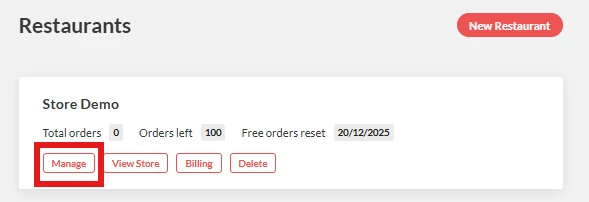
Locate the account you want to check and click "Manage".
-
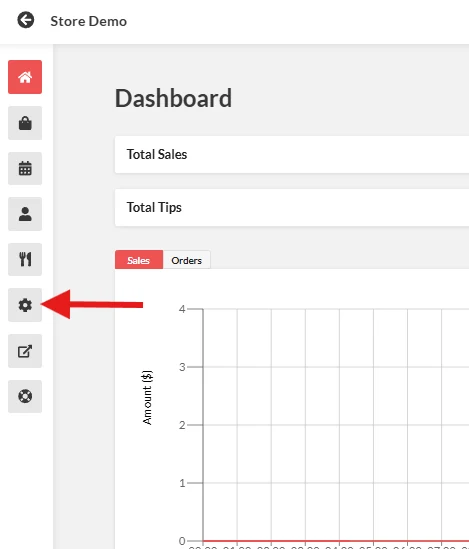
From the left panel, open the "Settings" dashboard.
-
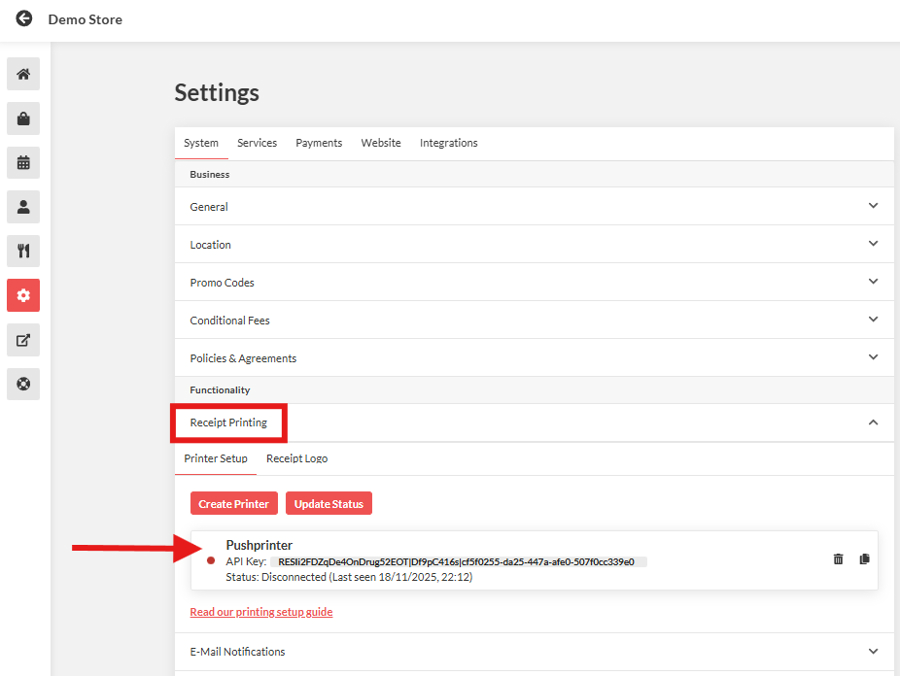
Click "Receipt Printing".
-
Review the printer .
- If the printer shows Disconnected, it is not currently connected to online ordering.
If Printer Shows Disconnected
- Ensure the PushPrinter app is running on the device linked to the printer.
- Restart or relaunch the device to re-establish connection
Checking Printer Status (Windows Control Panel)
-
Open Control Panel > All Control Panel Items > Devices and Printers.
-
Locate the printer in the list.
- If the printer is grayed out, it means the device is not detecting it.

Fixing the Printer Connection
- Remove or Reconfigure the Disconnected Printer.
-
To remove the printer:
Click the printer → Remove Printer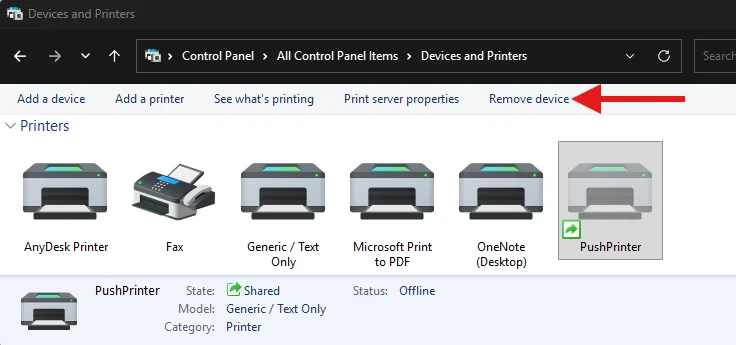
-
To reconfigure the printer:
Right-click the printer → Printer Properties → Ports.
Select the correct port based on the printer’s connectivity type.
-
- Reinstall the Printer
- If the printer still does not work after reconfiguring, reinstall it.
- For detailed installation steps, follow the appropriate printer installation guides provided in the links.
https://localforyou.com/pos-onlineorder/getting-started/hardware-requirements-1#printers